
Introduction
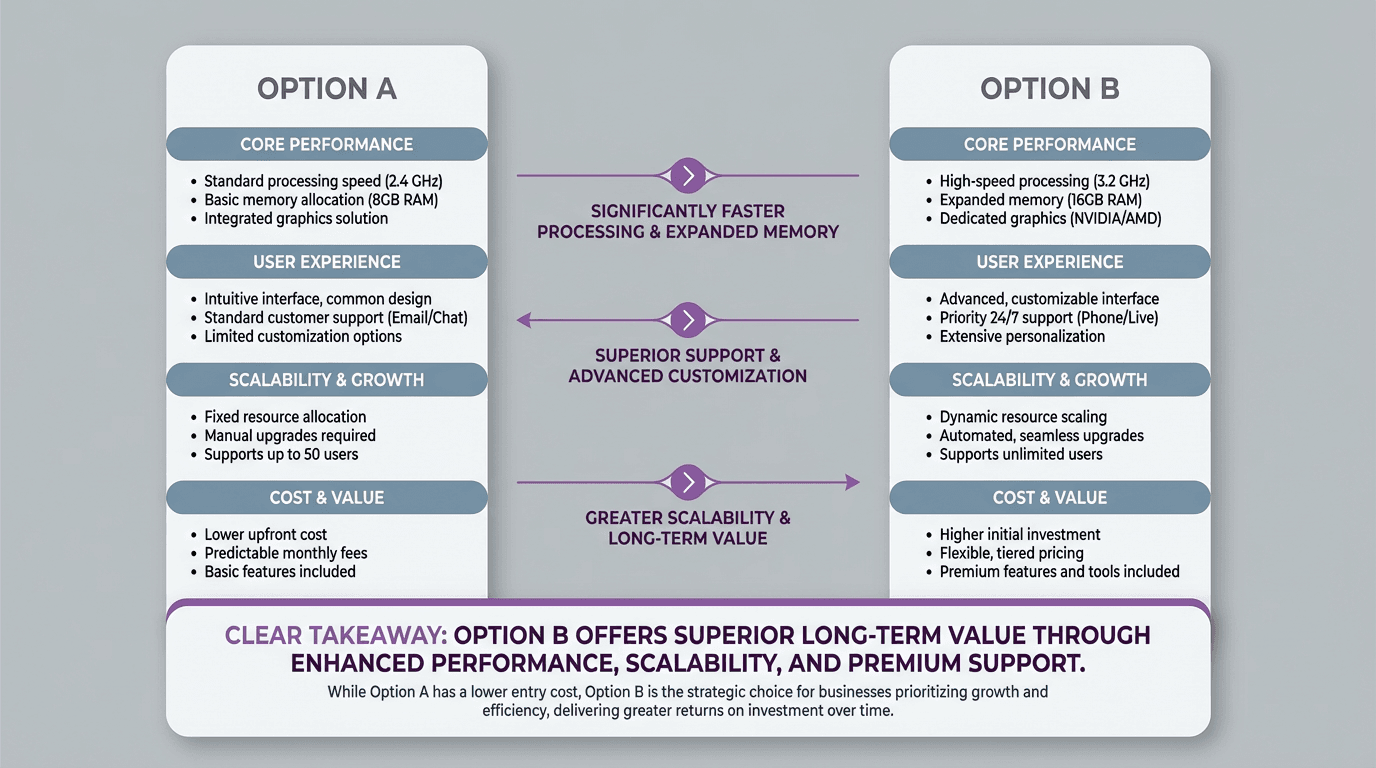
FormaLM helps shape an existing comparison into a result that is clear at a glance and finished enough to publish.
A comparison infographic is not a dump of every difference
Once people start listing differences, they often assume the infographic should include as many of them as possible. More rows feel more complete. More labels feel more rigorous. But completeness is not the same thing as clarity.
A useful comparison infographic is selective. It surfaces the differences that help the reader distinguish between the options.
That changes how you approach the material. Instead of asking what could be compared, ask what differences would change how someone understands the choice. If a detail does not sharpen that understanding, it probably does not deserve space in the graphic.
The selection has to happen before a blank table becomes a useful infographic.
Start with the decision the comparison needs to support
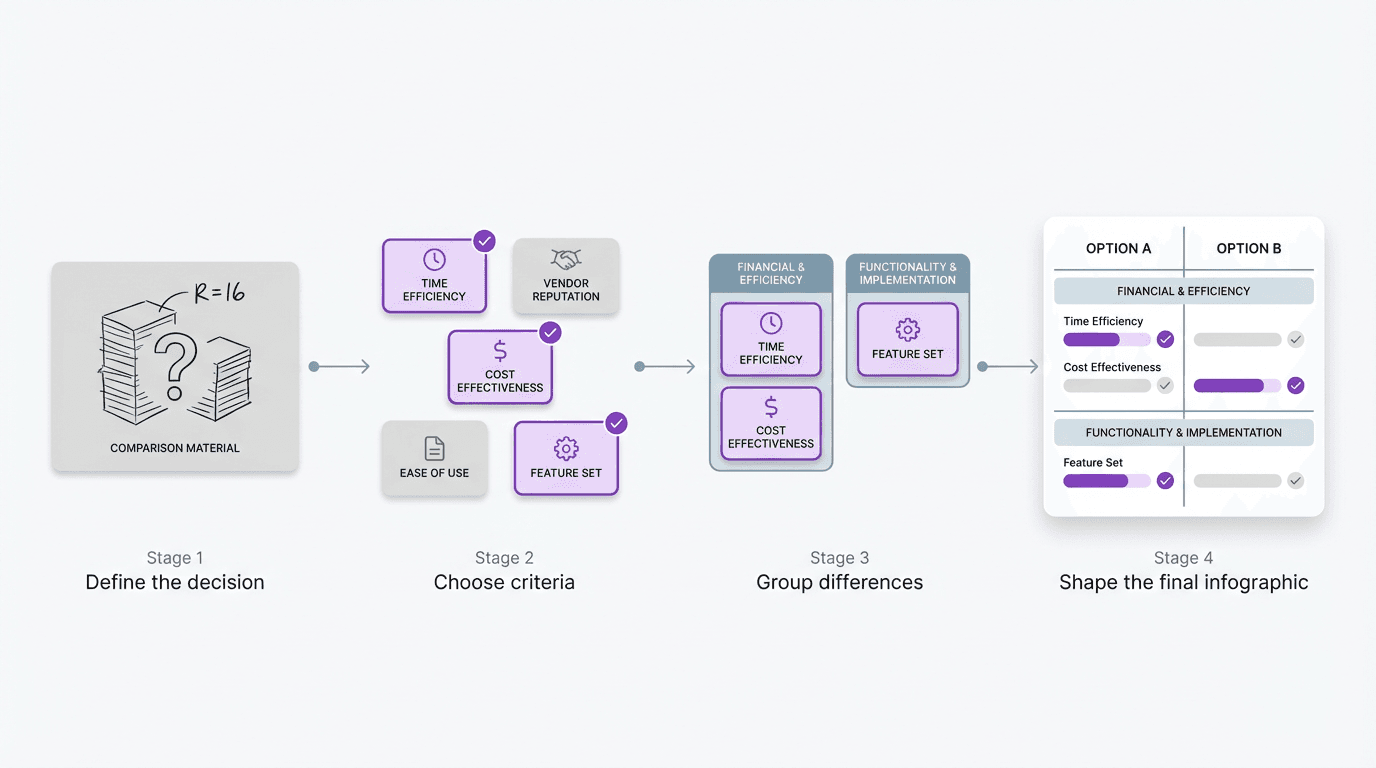
Before choosing layout, define the decision underneath the graphic.
What is the reader trying to understand? Are they deciding which tool to use? Which workflow is faster? Which approach is lighter, clearer, cheaper, or easier to maintain? Until that is explicit, it is hard to know what kind of differences the infographic should prioritize.
The same pair of things can produce very different graphics depending on the decision.
If you are comparing two products, one version might emphasize setup speed, cost, and team fit. Another might emphasize governance, integration depth, and output control. If you are comparing two content formats, one version might focus on readability, production time, and distribution behavior. Another might focus on decision support and reuse.
A practical starting sentence is:
"This comparison should help the reader understand the difference between these two options in order to decide ___."
Fill in that sentence before choosing the criteria or layout.
Choose criteria that reveal the real contrast
Not all criteria are equally useful.
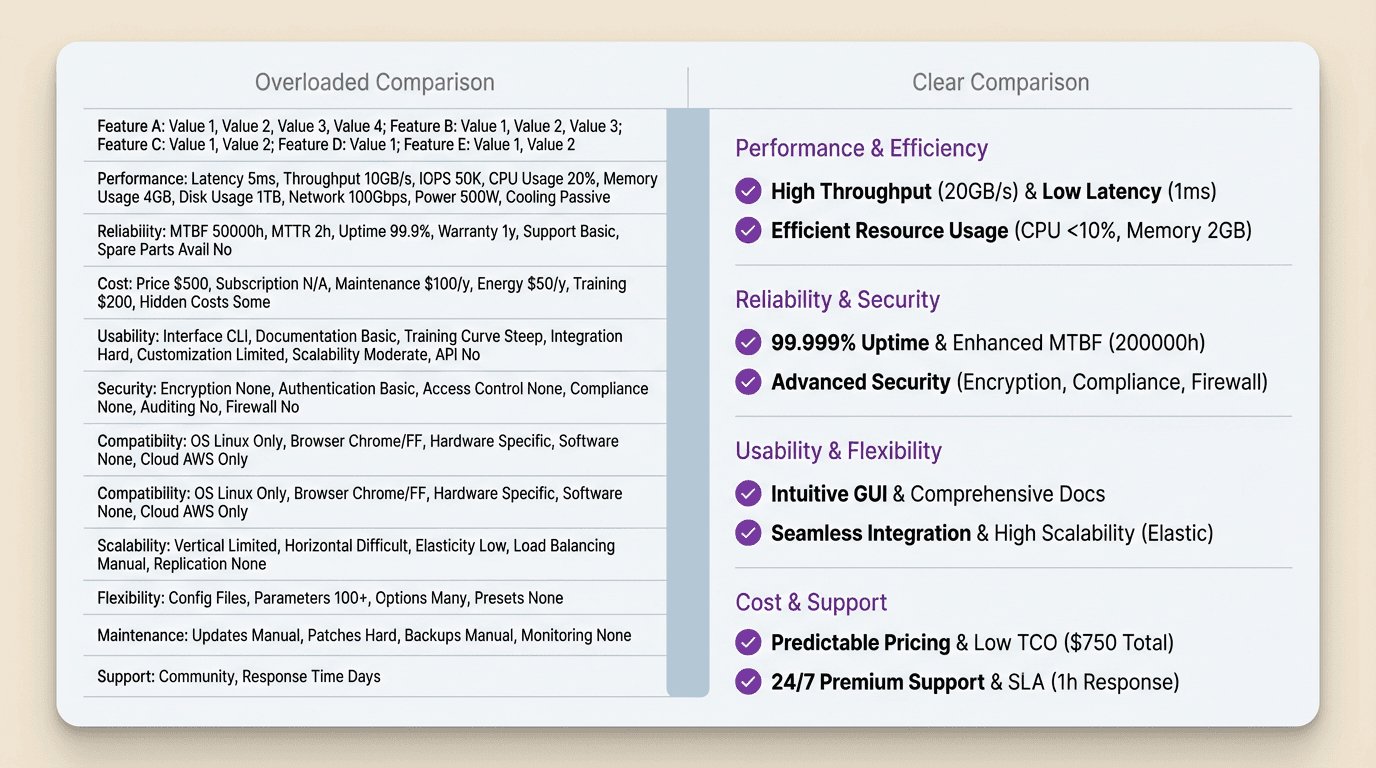
A long list of technically valid categories can still produce a noisy graphic. Choose criteria that reveal the contrast quickly.
That usually means choosing criteria that are:
- decision-relevant
- meaningfully different across the two sides
- easy to scan visually
- specific enough to avoid vague filler
If both options are similar on a criterion, it may not deserve prominent space. If a criterion is hard to explain in one short line, it may belong in supporting text instead of the main visual. If the label sounds generic, like "better experience" or "more powerful," it probably needs to be rewritten into something more concrete.
The strongest criteria expose the shape of the difference.
Group the differences before you design the layout
After choosing the criteria, group them so the infographic feels authored instead of assembled.
Do not leave them as a flat list if they clearly belong to different kinds of differences. A comparison infographic becomes easier to understand when related distinctions sit together. That might mean grouping by setup, workflow, output quality, team fit, cost, or speed. It might mean grouping by before, during, and after. It might mean grouping into strengths, limits, and best use cases.
The exact grouping matters less than the fact that the grouping exists.
Why? Because it creates hierarchy. The reader stops seeing the graphic as one long wall of distinctions and starts seeing a smaller number of comparison blocks. That lowers cognitive load immediately.
Structure determines how quickly the reader understands the contrast.
Make the difference obvious in one glance, then readable in a few more
A comparison infographic has two reading speeds.
The first is glance-level. The reader should be able to tell what kind of difference is being shown before they read every row.
The second is scan-level. Once the overall contrast is visible, they should be able to move through the criteria and understand the differences without rereading the whole graphic from the top.
That means the layout needs a strong visual spine. Clear columns. Stable labels. Consistent phrasing. Contrast that is visible before it is fully verbal.
In practice, this often means:
- short criterion labels
- parallel wording across both sides
- consistent row structure
- selective emphasis on the most important differences
- one strong concluding takeaway
If every row has the same visual weight, the reader has to do too much sorting on their own. A good comparison infographic reduces that burden. It makes the important differences easier to notice first.
Use short comparison language, not paragraph language
Useful graphics become heavy when the wording still behaves like prose.
Comparison infographics need tighter language than most normal writing. A row should not sound like a mini paragraph. It should sound like a clean distinction.
For example, instead of writing:
"This option is usually better for teams that need more flexibility and do not mind taking on extra setup complexity."
You might write:
- More flexible
- Heavier setup
- Better for custom workflows
This compression serves readability. A structure-first workflow reshapes the analysis so it can be understood quickly without losing its point.
Decide what belongs in the infographic and what belongs outside it
Not every part of the comparison should live inside the visual.
The format becomes overloaded when it tries to carry the headline, differences, caveats, exceptions, recommendation, and background reasoning at once.
Usually that is too much.
The infographic should carry the comparison itself. Supporting nuance can live in the caption, adjacent copy, or surrounding post, especially when some criteria need short qualifiers or the recommendation depends on context.
A helpful filter is:
- keep the main contrast in the visual
- keep exceptions and nuance nearby but outside the core grid
That keeps the infographic clear while leaving room for important caveats nearby.
End with the takeaway the comparison implies
The strongest comparison infographics interpret the side-by-side differences.
Once the reader has seen the contrast, the graphic should help them understand what that contrast means. Which option is lighter? Which one is better for speed? Which one is better for control? Which one suits a certain kind of team or situation?
That does not mean every infographic needs a hard recommendation. But it should usually offer a usable interpretation of the comparison.
Otherwise the reader still has to do the final sorting themselves.
A simple closing line can do a lot of work here. Something like:
- Better for fast alignment
- Better for complex control
- Better for recurring lightweight updates
- Better when accuracy matters more than speed
That line gives the graphic a clear finish and turns the comparison into an answer.
Making a comparison infographic gets easier when the format boundary is clear
The harder work comes before visual polish: deciding which differences deserve space, grouping them, and making the main contrast immediate. Once the structure is right, the visual work becomes more direct.
Comparison infographics work well when the source already contains clear differences. FormaLM helps select and organize those differences before the design work begins.